
How to Export KiCad Gerber, BOM and Position Files for DIYIPCB

Download Fabrication Toolkit for All from GitHub, install the ZIP in KiCad, and export Gerber, drill, BOM and component-placement files. You can use the files with your preferred PCB manufacturer or import them into DIYIPCB for PCB fabrication and assembly.
This guide uses the Windows KiCad 10 screenshots below. The current package is version 0.1.4, marked testing; its compatibility notes report KiCad 10.0.5 testing, while KiCad 8/9 still need validation. Menu labels may vary by version.
Get the KiCad plugin
Download fabrication-toolkit-for-all.zip
View the GitHub project and updates
1. Download the plugin from GitHub and install from file
- Open the DIYIPCB Fabrication Toolkit for All repository and download
fabrication-toolkit-for-all.zipusing the download link above or the file’s raw download button on GitHub. - Keep the installation ZIP intact. Do not extract it before installation, and do not use GitHub’s Code → Download ZIP source archive in its place.
- Open the KiCad project manager → Plugin and Content Manager.
- Click Install from File… at the bottom of the manager and select
fabrication-toolkit-for-all.zip. - If KiCad lists pending changes, click Apply Pending Changes. Confirm that Fabrication Toolkit for All appears under Installed. If it is already installed and there are no pending changes, the Apply button will be disabled.
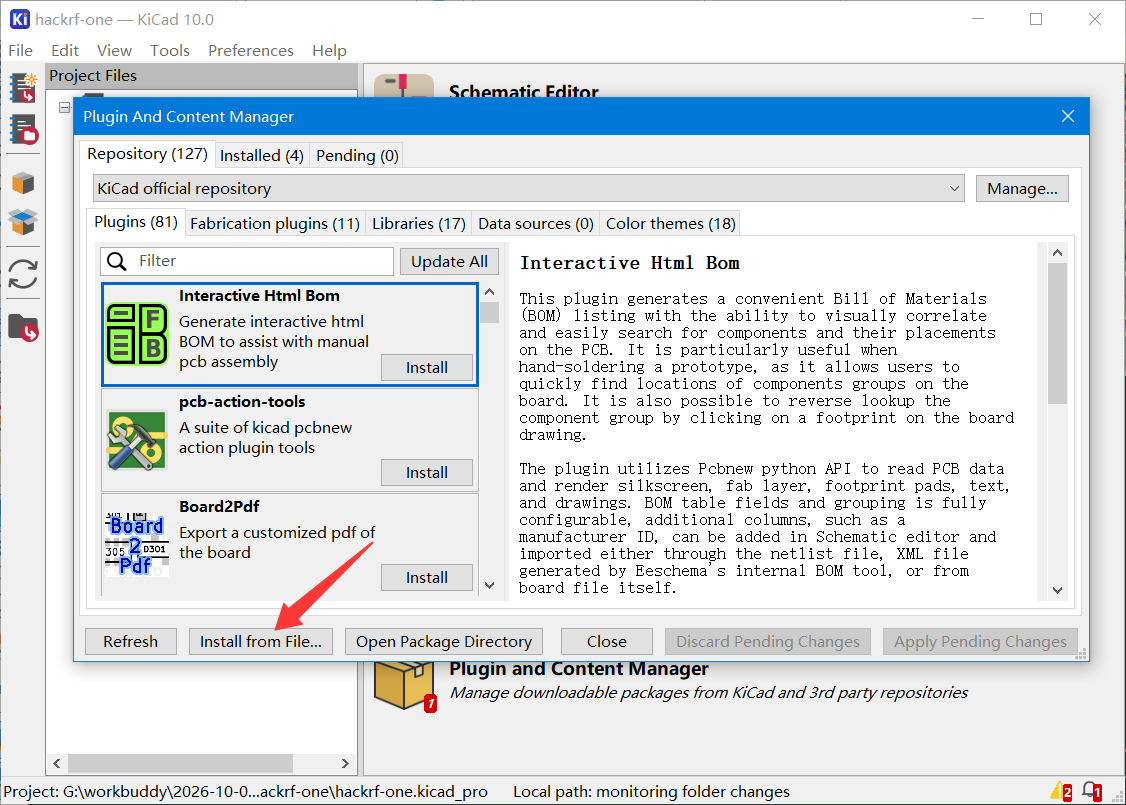
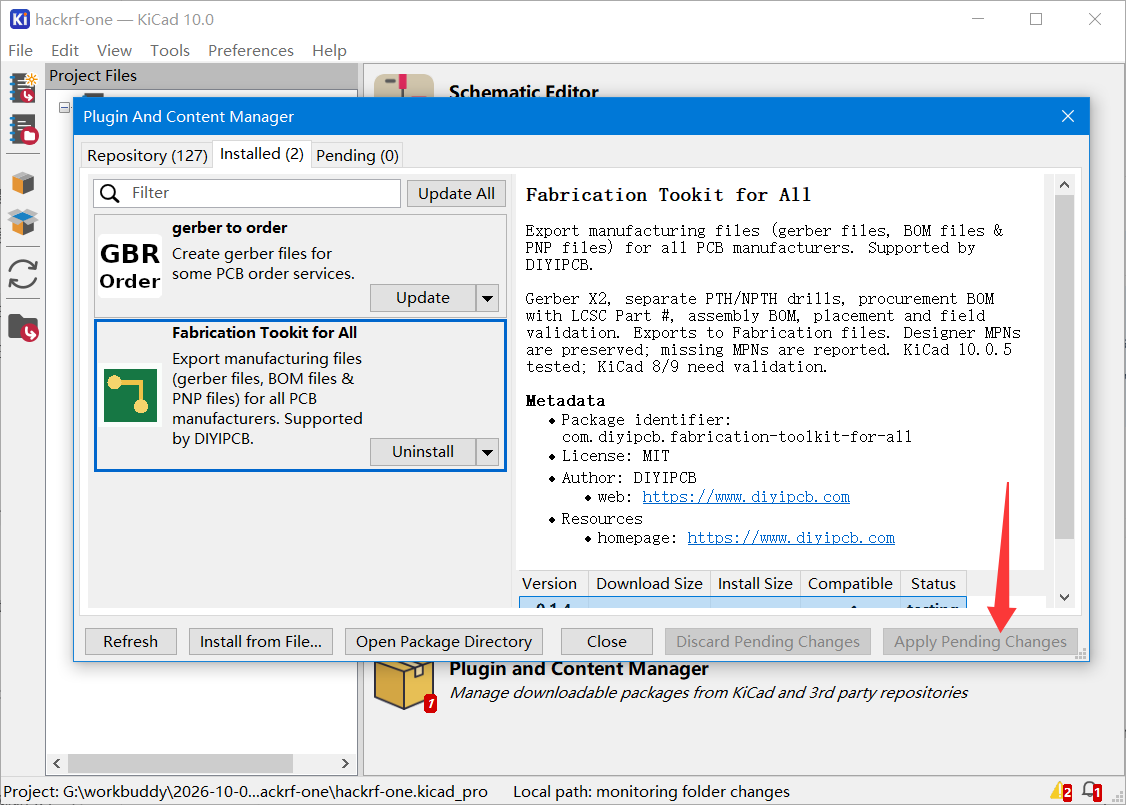
This is a local ZIP installation. You do not need to find the plugin in the official repository list or install Gerber to order for this workflow. Close the manager, then reopen the PCB Editor. If the plugin is missing, select Tools → External Plugins → Refresh Plugins or restart KiCad.
2. Open Fabrication Toolkit for All and generate files
Save your board before exporting. After changing schematic component fields, use Update PCB from Schematic and save again. Review the intended assembly variant, DNP settings, manufacturer and part-number fields. Run the relevant design checks before releasing files for production.
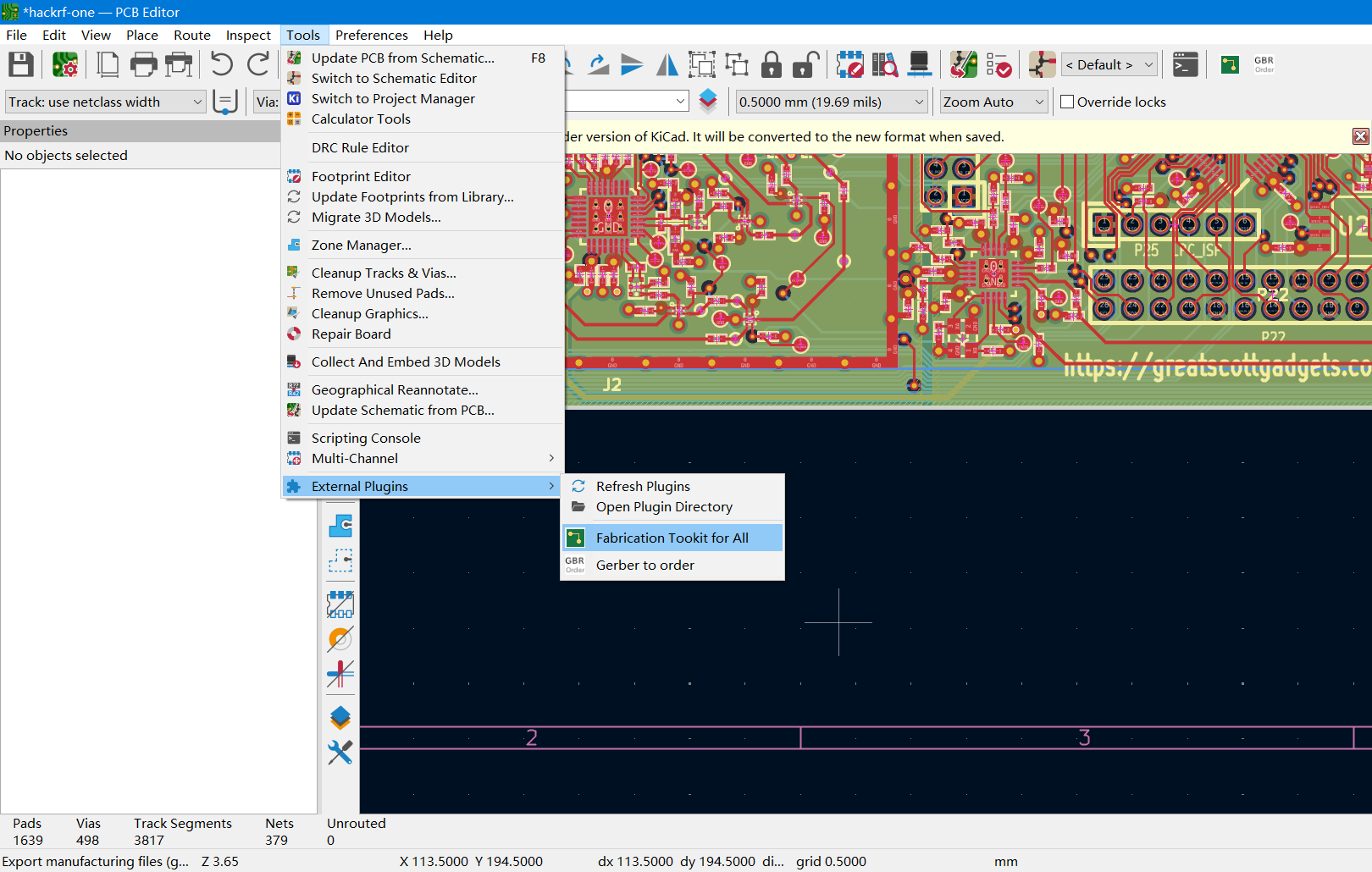
In the PCB Editor, select Tools → External Plugins → Fabrication Toolkit for All.
Review the options in the export dialog:
- Archive name: optional; leave blank to use the PCB name for the archive.
- Output folder: the default is
Fabrication filesbeside the PCB file. When choosing another parent directory, the plugin uses aFabrication filesfolder there. - Fill all zones before generation: refill copper zones for the export.
- Exclude DNP components from the production BOM: omit do-not-populate parts from the production BOM. An all-components BOM is also retained when this option is enabled.
- Open browser and import files to DIYIPCB after generation: open the order page and transfer the generated Gerber, BOM and placement files. Keep KiCad open until the import finishes.
- Include a PCB snapshot in the production package: optionally include a copy of the PCB in the production package.
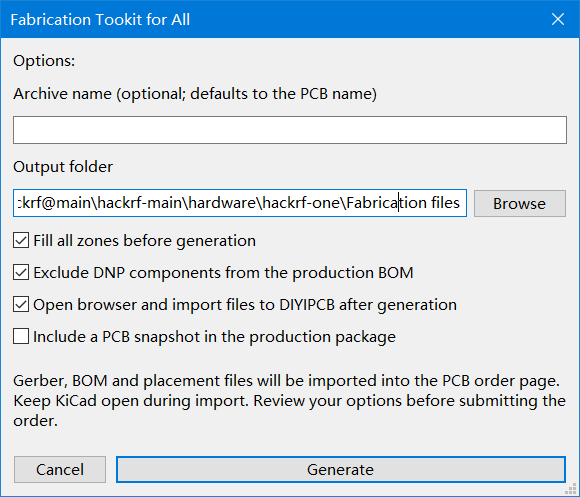
Click Generate and wait for the completion message. If you only need local exports, uncheck the browser-import option. An export does not automatically submit an inquiry, add an item to the cart or make a payment.
3. Check the Fabrication files folder
The current plugin produces the files below. board represents your PCB filename; a custom archive name changes the ZIP names.
| File | Purpose |
|---|---|
board-Gerber.zip |
Gerber artwork and drill files for bare-PCB fabrication. Use this ZIP in the Gerber upload field. |
board-BOM.csv |
Procurement BOM with references, quantities, values, footprints and available manufacturer, part-number and LCSC fields. Used by the automatic file import. |
board-BOM-Assembly.csv |
Assembly BOM excluding DNP parts. |
board-BOM-All.csv |
All-components record created when production-BOM DNP exclusion is enabled. Do not confuse it with the list of parts to assemble. |
board-CPL.csv |
Component placement data, including position, rotation, side and mounting type. Upload under Centroid File Upload when importing manually. |
procurement-issues.csv |
Missing procurement-field report. Resolve missing part identification before requesting component purchasing. |
manifest.json |
Export settings, layer mapping, source hash, coordinate conventions and warnings. |
board-Production.zip |
Combined production package for keeping the release files together. It is separate from the Gerber-only archive. |
The plugin preserves designer-supplied part numbers. It does not automatically choose missing MPNs or verify stock availability. Check the BOM even when export succeeds.
Check the Gerber outline, copper layers, solder mask and drill files in a viewer. Reconcile BOM references and DNP parts with the CPL. The current CPL uses millimetres, the auxiliary origin, X to the right, Y upward and native KiCad counter-clockwise rotation; bottom-side coordinates are not mirrored. Confirm the assembler’s required convention.
When sending files to another manufacturer, check their naming and placement requirements. In this package, -F_Paste.GPS and -B_Paste.GBS identify paste layers, while an unsuffixed .GBS identifies bottom solder mask. Use the layer mapping in manifest.json if a viewer relies on filename extensions.
4. Import the files into DIYIPCB and review your order
Automatic import
- Leave Open browser and import files to DIYIPCB after generation selected and click Generate.
- Keep KiCad running and use the browser opened on the same computer. Wait for the files to finish importing into the DIYIPCB PCB/PCBA ordering page.
- Check the imported files, board dimensions, copper-layer count and preview. Select the required quantity, material, thickness, copper weight, finish and solder-mask color.
- For bare PCBs, keep assembly unselected and review the price and specifications before continuing through the ordering page.
- For PCBA, select The PCBs above need assembly, check the BOM and centroid attachments, and specify assembly quantity, populated sides and any special instructions. Review the quotation form before clicking Submit Inquiry.
File import is a preparation step. You still review and submit the order or inquiry yourself. PCB assembly is quoted after the files and scope are reviewed.
Manual upload if needed
If the browser import does not finish, open the output folder and upload board-Gerber.zip on the PCB/PCBA page. For assembly, upload the intended production board-BOM.csv under Parts List (BOM) Upload and board-CPL.csv under Centroid File Upload. Use Other Assembly Files for assembly drawings and instructions. A bare-PCB order does not require the BOM or CPL.
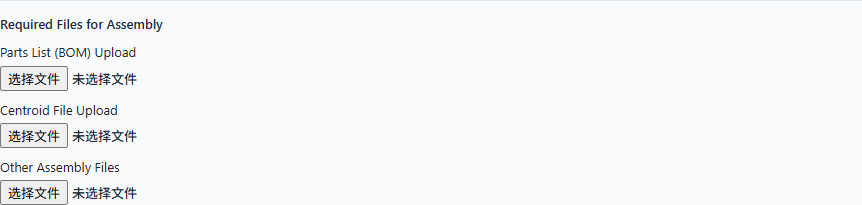
DIYIPCB supports component sourcing, SMT assembly, through-hole and hand soldering, and worldwide shipping. See the BOM and placement checklist before requesting assembly.
Troubleshooting and final checks
Why does Install from File reject the ZIP?
Check that you downloaded the named fabrication-toolkit-for-all.zip plugin package, not the repository source-code ZIP. Re-download the package if the file is incomplete.
Why is a component missing from the BOM?
Check DNP and Exclude from BOM settings, synchronize schematic fields to the PCB and regenerate. Review the all-components BOM and procurement-issues report against the intended assembly variant.
Why did browser import fail?
Keep KiCad open during transfer and use a browser on the same computer. If local browser permissions or connection settings prevent transfer, use the manual upload steps above.
Does successful export mean the board is production-ready?
No. Review the electrical design, fabrication requirements, procurement fields and assembly orientation. The export does not perform a complete DRC, electrical or component-availability review.
For file preparation or PCBA quotations, contact service@diyipcb.com. For an existing order, email order@diyipcb.com with your order number.
Ready to manufacture your KiCad board?
Start your PCB or PCBA quotation on DIYIPCB
Plugin source and installation package: DIYIPCB Fabrication Toolkit for All. Installation and export screenshots supplied for this guide. The HackRF example retains the original design credits visible in the screenshots.
