
How to Export Gerber, BOM and Pick-and-Place Files from LCEDA / EasyEDA Pro for DIYIPCB

Export Gerber and drill files, a bill of materials (BOM), and pick-and-place coordinates (CPL) from LCEDA / EasyEDA Pro, then prepare your files for a DIYIPCB fabrication or assembly quotation.
This walkthrough uses the English interface of LCEDA Pro 4.1.71 and an ESP32S Handheld V0.6 project. EasyEDA Pro editions and later versions may use different menu labels. The example demonstrates file preparation, not a released or certified product.
1. Select and save the correct PCB revision
Open your project and select the intended PCB document. This example contains both V0.6 and V0.7: choose V0.6 → PCB1. Confirm the matching schematic and assembly variant. Save your changes and export an updated project backup; a previously downloaded .epro2 archive does not automatically include later edits.
Use the same revision for all outputs, for example ESP32S_Handheld_V0_6_DIYIPCB_R1. If your build needs firmware, release firmware that matches this hardware revision.
2. Run DRC and resolve schematic/PCB differences
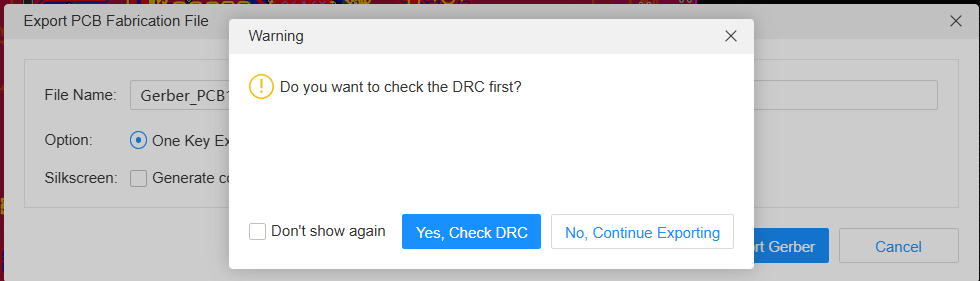
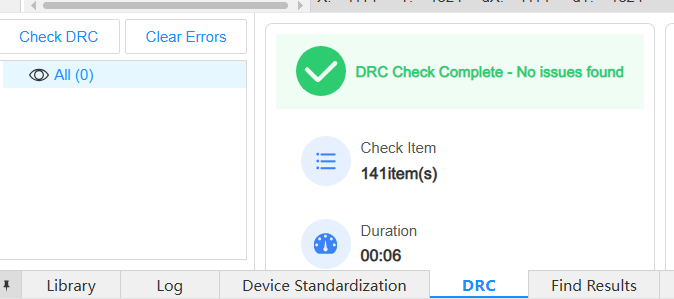
Run Check DRC, or choose Yes, Check DRC when prompted during Gerber export. Review errors before continuing. A successful check means no violations were reported by the enabled rules; it does not verify component sourcing, firmware, electrical performance or assembly completeness.
If a netlist mismatch appears, inspect the Import Changes preview. Verify that the schematic and PCB belong to the same revision. Do not blindly apply additions, deletions, footprint replacements or changed pin connections. For confirmed net-name-only corrections, the Also update track’s net option can keep track net names aligned. Re-run DRC after applying approved changes.
3. Export Gerber and drill files
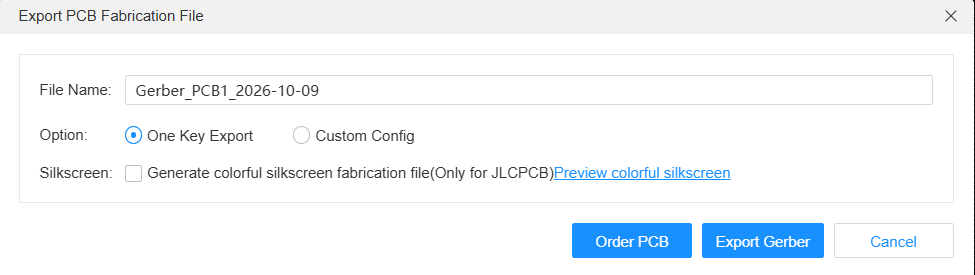
Select Export → PCB Fabrication File (Gerber)…. Set a revision-specific filename, select One Key Export for this example, and leave the colorful-silkscreen option unchecked for ordinary silkscreen. Click Export Gerber to save the ZIP. The order button is a separate service; exporting the files lets you submit them to DIYIPCB.
Check the ZIP contents and preview the artwork. This four-layer example contains GTL and GBL outer copper, G1 and G2 inner copper, top/bottom solder mask and silkscreen, a GKO outline, and actual DRL drill files. Include all required plated, non-plated and via drill files. A drill drawing alone is not drill data. Paste layers are useful for stencil preparation.
Confirm the outline, cutouts, holes, copper-layer count and branding. The example outline is 100 × 55 mm. Specify board thickness, copper weight and stack-up separately where the files do not define them; do not infer these from the layer count alone.
4. Export the BOM
Select Export → Bill of Materials (BOM)…. Device Standardization can help review part data, but you can also export first and complete sourcing information with DIYIPCB.
- Range: V0.6 : PCB1.
- Set Number: 1, so quantities represent one board. Enter production quantity separately when ordering.
- File Type: XLSX for review, or CSV if required by the receiving system.
- Fields: Quantity, Comment/Value, Designator, Footprint, Manufacturer Part, Manufacturer, Supplier Part and Supplier.
- Grouping: combine only genuinely interchangeable parts. Include manufacturer part number and footprint in grouping where appropriate.
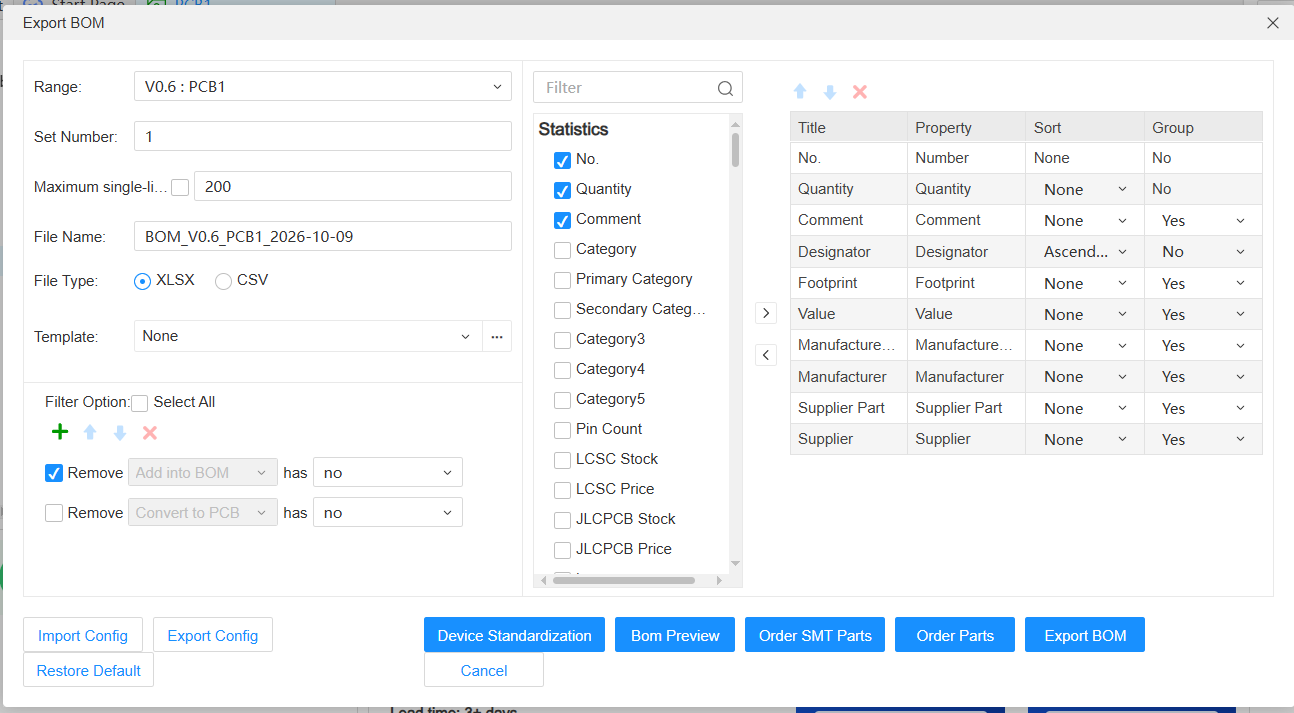
The filter Remove → Add into BOM → has → no excludes objects explicitly marked not to appear in the BOM. This flag alone is not a complete assembly instruction: verify whether each exclusion is a DNP component, an alternative or an item supplied separately.
Click Bom Preview. Check quantities, designators and procurement specifications, then Export BOM. Exporting cannot invent missing part numbers, capacitor voltage ratings, resistor tolerances or approved substitutes.

5. Export pick-and-place coordinates
Select Export → Pick and Place File (CPL)…. For this single-board example use:
| Setting | Selection |
|---|---|
| Export File Type | CSV |
| Separator | Comma (,) |
| Unit | mm |
| Coordinates do not include units | Checked |
| Mirror bottom components’ coordinate / rotation | Unchecked; retain native export conventions unless your assembler requests a conversion |
| Include panelized components / fiducials | Unchecked for this single-board export |
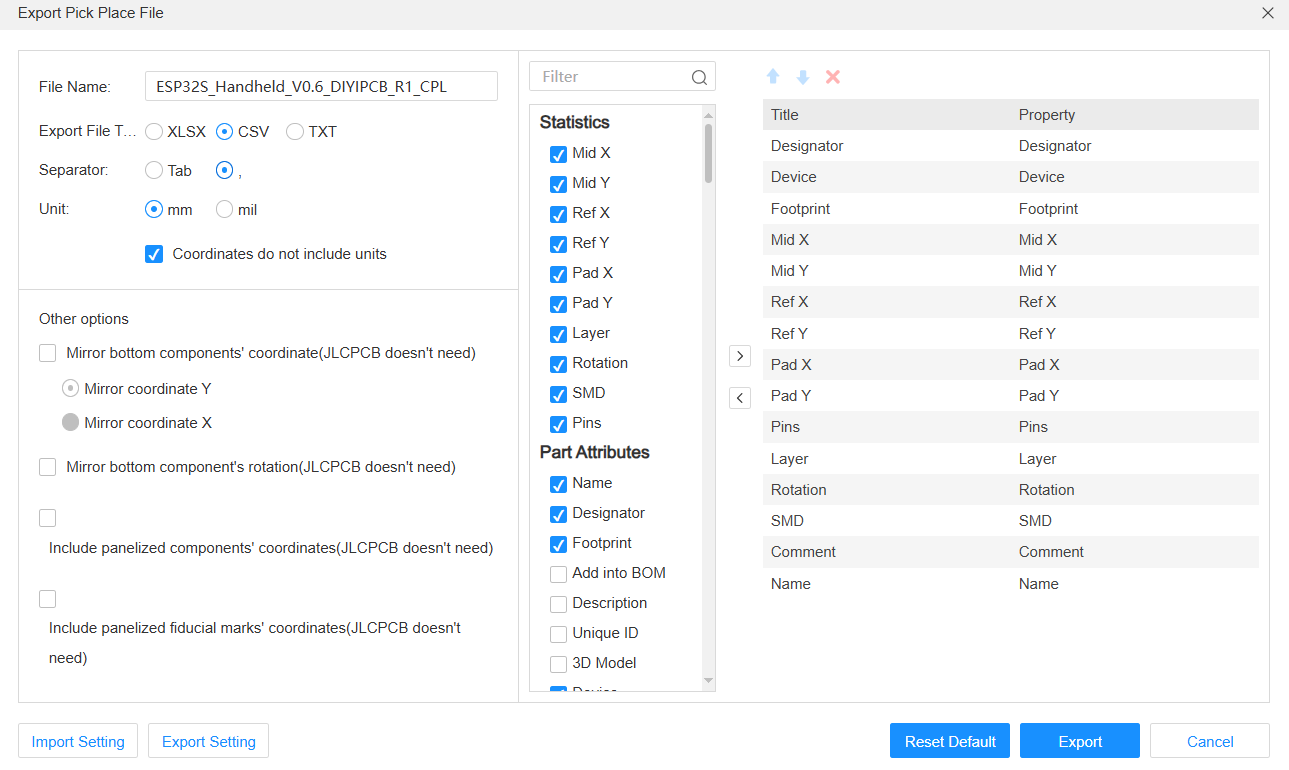
Keep Designator, Mid X, Mid Y, Layer, Rotation and Footprint. Other columns may remain, but map Mid X/Mid Y as the placement centers; do not substitute Ref X/Y or Pad X/Y. Negative coordinates can be valid when the design origin is outside the placement area. Do not shift or mirror coordinates merely to make the numbers positive. Verify alignment and component rotation in the assembly preview.
6. Cross-check the manufacturing package
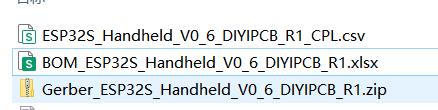
Keep Gerber ZIP, BOM XLSX and CPL CSV together. Check that BOM references and quantities agree, references are not duplicated, and the placement data matches the intended assembly list. Document DNP parts, hand-soldered parts and customer-supplied components explicitly.
Real example: the supplied BOM contains 57 grouped lines covering 140 components, while its CPL contains 145 positions. L3, R5, R10, R23 and R42 are absent from the BOM. The original project marks these five as “Add into BOM = no”. Confirm their intended assembly status before filtering placement data. This discrepancy is not resolved by a clean DRC result.
The example also has 29 BOM lines without manufacturer part numbers, including U1 listed only as S31. It is suitable for file-review discussion, but the BOM is not yet a complete procurement release. Do not copy its parts or manufacturing settings as a universal template.
7. Request PCB fabrication or assembly from DIYIPCB
Open the DIYIPCB PCB/PCBA ordering page. Upload your Gerber ZIP and review the board preview, dimensions and layer count. Select the quantity and manufacturing specifications that match your design.
For assembly, attach the BOM and CPL in the corresponding upload areas. Include assembly drawings, polarity notes, a confirmed DNP list, approved substitutions and details of through-hole or hand-soldering work. If firmware programming or functional testing is required, provide the firmware, programming instructions and acceptance criteria. Review the quotation and scope before committing to production.
DIYIPCB can assist with component sourcing, SMT assembly, through-hole soldering, final assembly and worldwide shipping. Missing procurement data can be reviewed as part of the quotation process; file upload alone does not make a design production-ready.
Request a PCB / PCBA quotation
Related guide: Export manufacturing files from KiCad.
Screenshots supplied by DIYIPCB. Example hardware project: ESP32-S31游戏机 by kkklllsss, shown under CC BY-NC-SA 4.0. A public project page is not blanket permission for commercial manufacture. The example adds ESP32S / DIYIPCB silkscreen. Confirm applicable permissions before using third-party designs or media commercially.
